Define Tier Table Effectivity Period
Optionally, you can define multiple Tier Tables within a Tier Scheme. Each Tier Table has its own status and effectivity period.
As a best practice, you should not define multiple Tier Tables with "overlapping" effectivity; you should have only one Tier Table active at a time. Likewise, be careful not to allow any gaps in effectivity. In the event that the evaluation date for a Member's Tier assignment does not fall under the effectivity period of any Tier Table, the first published Tier Table on the Base Rules tab will be considered as the effective one.
Note: You must also set the effectivity period for the overall Tier Scheme; see Define Tier Scheme Effectivity Period for more information.
To define the effectivity period for a Tier Table:
-
Select Rules from the top navigation bar, then select Tier Schemes from the side navigation menu. The Tier Schemes screen is displayed.
-
Search for and select the desired Tier Scheme (see
-
Select the Base Rules tab. The platform displays all the Tier Tables defined in this Tier Scheme.
-
Optionally search for the desired Tier Table (see
-
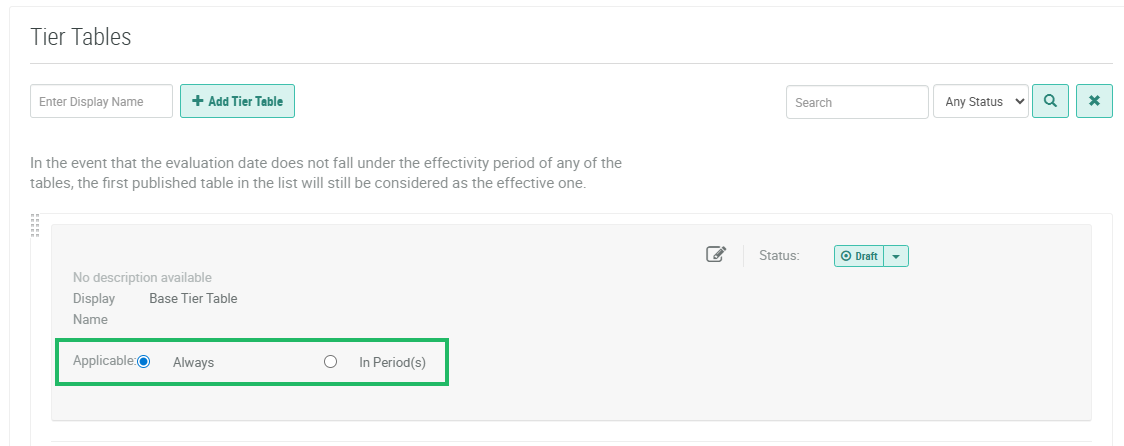
Within the header section of the desired Tier Table, next to Applicable, select either:
-
Always: This Tier Table is always effective.
-
In Period(s): This Tier Table is effective only within the selected custom Time Period (or periods). From the drop-down menu, select one or more Time Periods. This option is enabled only if you selected a Default Period of Custom from the Settings tab, and you defined at least one custom Time Period. For more information, see Working with Custom Time Periods.
-